How To Change Globe At Home Wifi Password Using Phone
Globe at Home Prepaid WiFi is an affordable and easy-to-use internet option for families or individuals who need flexible internet access. Changing your Globe At Home WiFi password using your phone is a quick and easy way to keep your internet connection secure. Whether you want to update your password for better security or simply personalize it, Globe provides a convenient way to do it by accessing your router’s settings via a web browser on your phone.
To begin, follow the steps below on your phone to quickly change your Globe at Home WiFi password.
Requirements Before Changing the Password
Before proceeding, make sure you have the following:
Your router’s IP address (default: 192.168.254.254)
Your admin username and password (found on the router or previously set)
Steps to Change Globe at Home WiFi Password Using a Phone
1. Access the Globe at Home Router Settings
To change your WiFi password, you need to log into your router’s admin panel. Follow these steps:
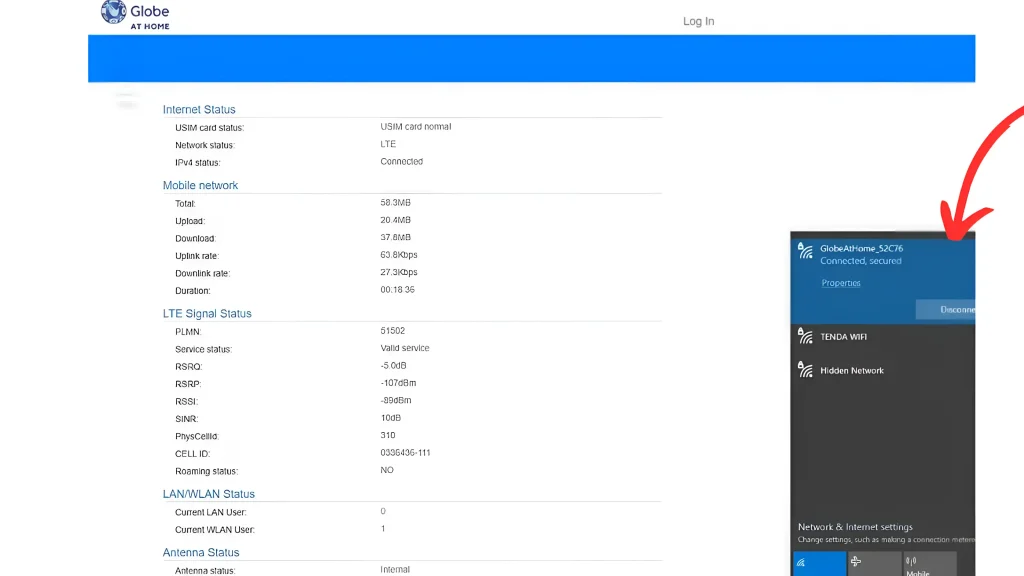
First ensure your laptop/mobile phone is connected to the globe wifi device whose password you want to change.
Open a web browser on your phone (Google Chrome, Safari, or any other browser).
In the address bar, type 192.168.254.254 and press Enter.
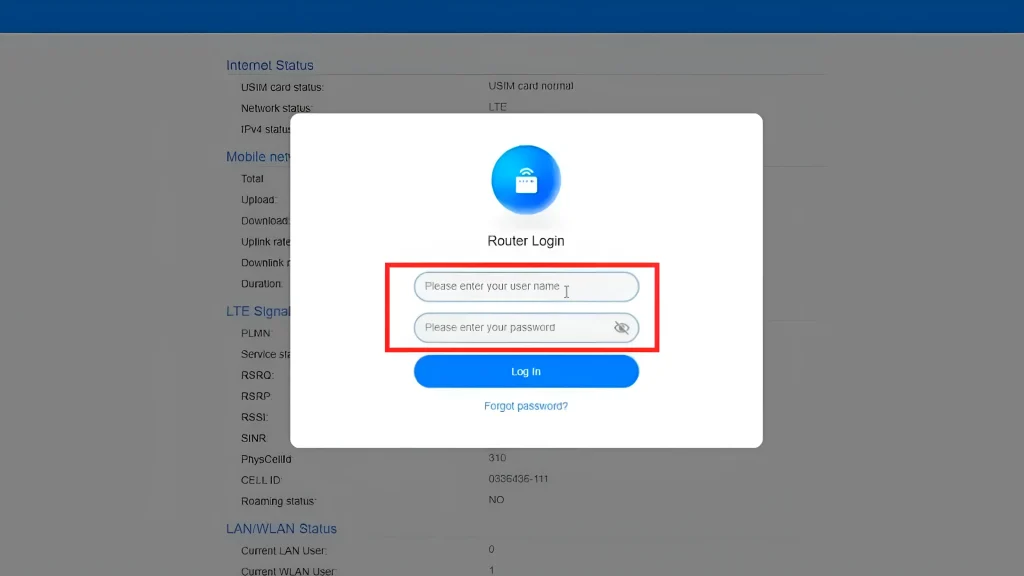
The Globe at Home Router Login Page will appear.
Enter your admin username and password. (Check your router’s sticker for default credentials.)
Tap Login to access the router settings.
Note: If you change your admin password before but forgot it, you may need to reset the router to restore default settings.
2. Go to the WiFi Settings
Once inside the router settings:
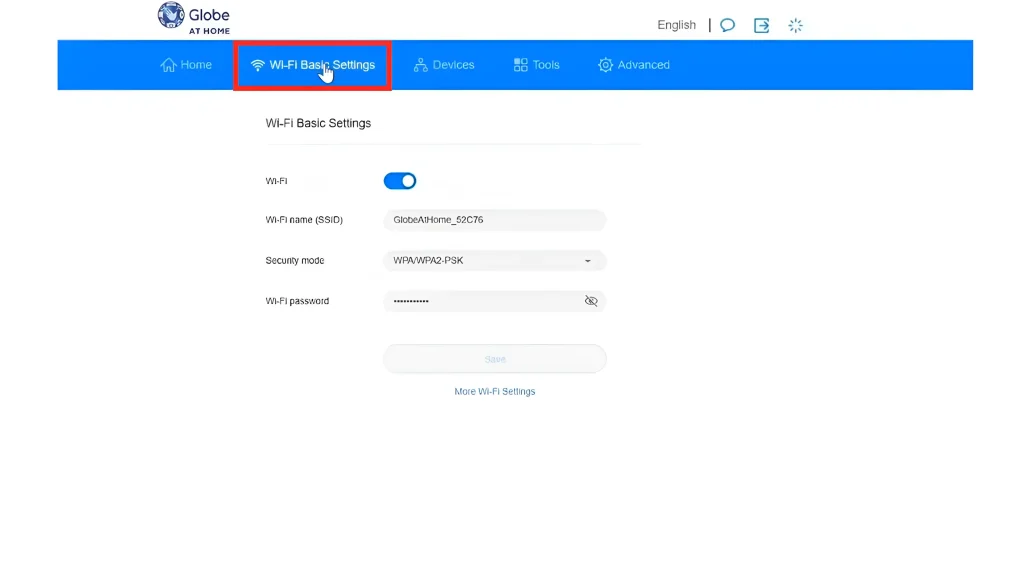
Look for the Wireless or WiFi Settings section.
Depending on your router model, this option may be under Network Settings or WLAN.
Tap on WiFi Security Settings or SSID Settings to view your current password.
3. Update the WiFi Password
Now, it’s time to change your password:
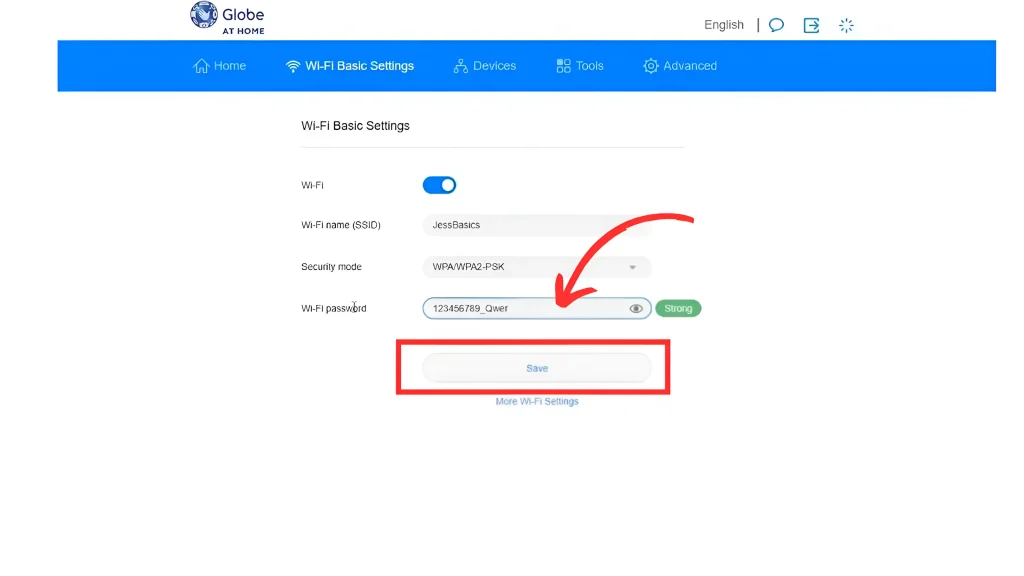
Find the field labeled WiFi Password or Pre-Shared Key (PSK).
Delete the old password and enter a new, strong password.
Use at least 8 characters. Combine uppercase, lowercase, numbers, and symbols for better security.
Tap Save or Apply Changes.
4. Reconnect Devices to the New WiFi Password
After updating your password, your devices will automatically disconnect from the WiFi. To reconnect:
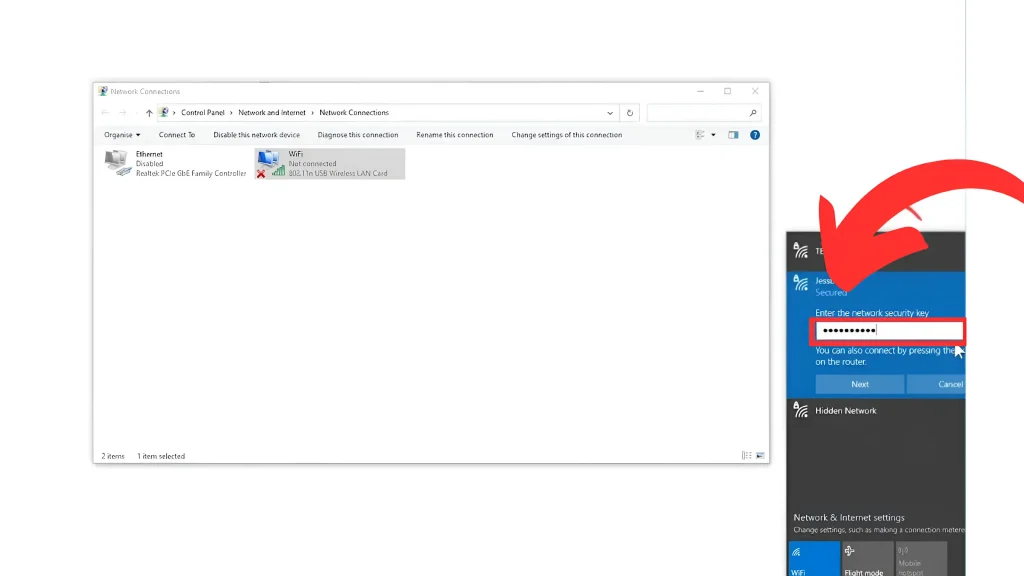
Go to your phone’s WiFi settings.
Select your Globe at Home WiFi network.
Enter the new password and click on Connect.
Repeat this process for all your other devices, such as laptops, smart TVs, and tablets.
Why Changing Your Globe WiFi Password Is Important
Regularly updating your Globe at Home WiFi password has several advantages:
Protect Personal Information: If someone gains access to your WiFi, they may attempt to hack into your connected devices. Regular password updates add an extra layer of protection.
Prevents Unauthorized Access: If too many devices are connected to your network, your internet speed may slow down. Changing your password ensures only authorized users can connect.
Improves Internet Speed: If neighbors or unauthorized users are accessing your WiFi, it can cause congestion and affect your connection. A new password helps maintain better speeds.
Enhances Security – Cyber threats, such as hacking attempts and data leaks, are a risk for unsecured networks. Updating your password strengthens your security.
Troubleshooting Tips
Forgot Admin Password?
If you can’t log into your router, try using the default username and password found on the router.
If the default login doesn’t work, reset your router by pressing and holding the reset button (usually at the back) for 10-15 seconds.
Can’t Access 192.168.254.254?
Make sure your phone is connected to Globe at Home WiFi and not using mobile data.
Try using another browser or clearing your cache.
WiFi Not Working After Changing the Password?
Restart your router and reconnect your devices.
Ensure you entered the new password correctly.
Conclusion
Changing your Globe at Home WiFi password is a simple process that helps improve security and prevent unauthorized access. By following these steps, you can easily update your password using your phone and ensure a more stable internet connection. For better security, update your password regularly and avoid sharing it with too many people. If you experience issues, resetting your router or contacting Globe’s customer support can help.
FAQs || YOU MAY WANT TO KNOW
To change your Globe At Home Wi-Fi password using your phone, follow these steps:
Open a web browser on your phone and go to the Globe At Home admin portal (http://192.168.254.254).
Log in using the default username and password (usually found on the sticker of your router).
Once logged in, go to the “Wi-Fi Settings” section.
Look for the “Wi-Fi Password” field and enter your new password.
Save the changes, and your Wi-Fi password will be updated.
The default username and password for most Globe At Home routers are:
Username: admin
Password: admin (or a password provided on the router’s label)
If you have changed the password before and cannot remember it, you may need to reset your router.
Yes, you can change your Globe At Home Wi-Fi password using just your phone by accessing the admin portal through a browser.
If you’ve forgotten your Wi-Fi password, you can reset your router to its default settings. To do this:
Find the reset button on your router.
Press and hold the reset button for about 10 seconds until the lights flash.
Once the router restarts, you can log in using the default username and password (admin/admin), then change your password
Currently, the Globe One app does not support changing the Wi-Fi password directly. You will need to use the admin portal through a browser on your phone to make changes.
TM (Touch Mobile) is known for its budget-friendly prepaid promos, serving Filipinos who need affordable call, text, and data services. One of its latest offers, TM EasyPLAN, provides a convenient way for users to enjoy cost-effective mobile plans with fixed allocations for data, calls, and texts. You can easily subscribe to this plan by dialing…
Struggling with slow internet or unsure if your area really has strong 4G or 5G coverage? You are not alone. Globe’s 4G & 5G coverage map is often the first place people check when they want to know if their area has strong network support. With massive expansion in both 4G & 5G networks, Globe…
SIM Registration is essential for legal and security issues. Checking your Globe SIM registration details online can be a simple process, but there might be some confusion about which process to follow. The main issue is simply figuring out the steps based on the type of Globe SIM you have (Globe Prepaid, Globe Postpaid, Globe…
The implementation of the SIM Registration Act in the Philippines requires all SIM card users to register their numbers to prevent scams and fraudulent activities. However, minors (individuals below 18 years old) have specific rules when registering a SIM card, as they do not yet have full legal capacity to enter into agreements. If you…
Looking for the best Globe prepaid promos in 2026? Globe Telecom has upgraded its plans to give you more data, free 5G boosts, unlimited calls and texts, and flexible add-ons to fit your lifestyle. Whether you’re streaming videos, gaming, working online, or just staying in touch with family and friends, there’s a promo made for…
TM (Touch Mobile) has long been a popular prepaid network in the Philippines, offering affordable mobile services, including texting, calls, and data. Many users often seek ways to get free load to stay connected without spending money on recharges. While there is no official “free load” program, there are various ways to earn or get free…