DITO APN Settings

Access Point Name (APN) settings allow your device to connect to a mobile network and access the internet. If you’re a DITO Telecommunity user in the Philippines, having the correct DITO APN settings is essential for smooth mobile data and MMS functionality. Incorrect or missing APN settings may result in slow internet speeds or no connection at all.

Follow the steps below to set up or update your DITO APN settings on both Android and iOS devices for a seamless connection.

What Are DITO APN Settings?

APN stands for Access Point Name, which is the access point between your mobile network and the internet. When your APN settings are correct, your device can connect to DITO’s mobile data services.

You may need to manually set your APN if:

  • Mobile data is not working after inserting a DITO SIM.
  • You experience slow data speeds.
  • You switched to a new device.

Updating your DITO APN settings can resolve these issues and ensure you get the best data speeds available.

DITO APN Settings for Android

If you’re using an Android device, follow these steps to manually set up DITO APN settings:
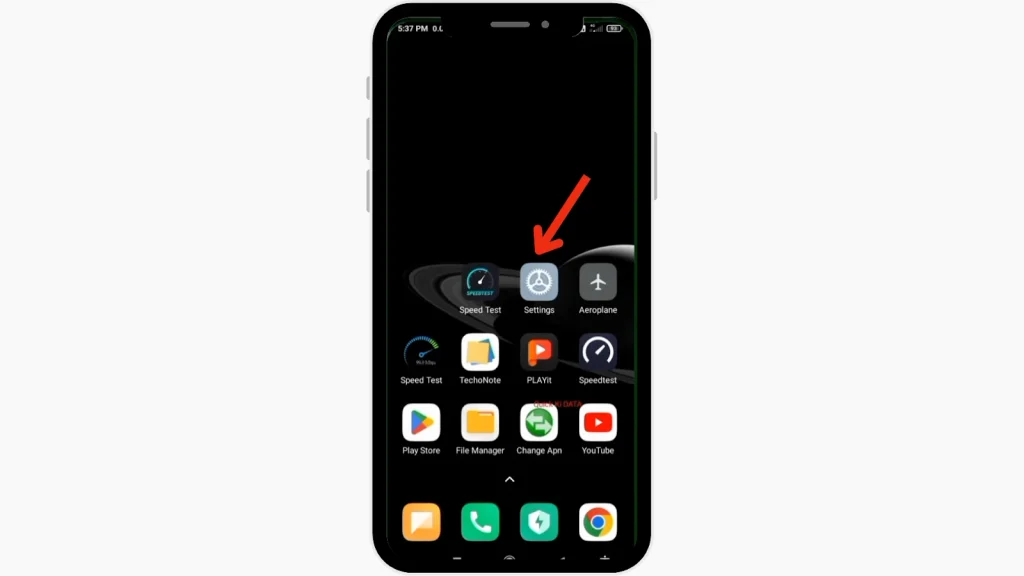
  • Insert your new DITO SIM into your phone.
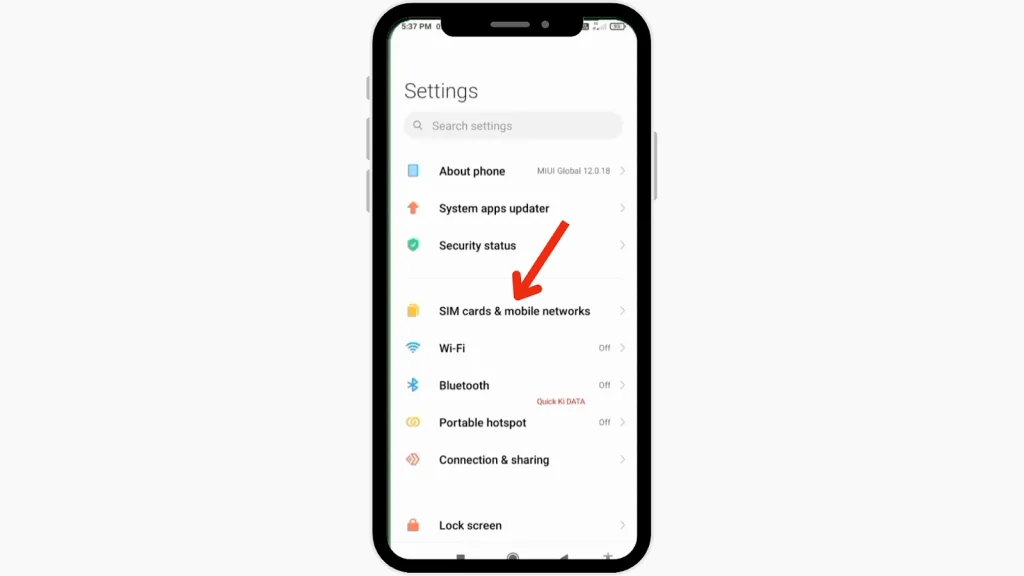
  • Go to the “Settings” app on your Android device.
Settings
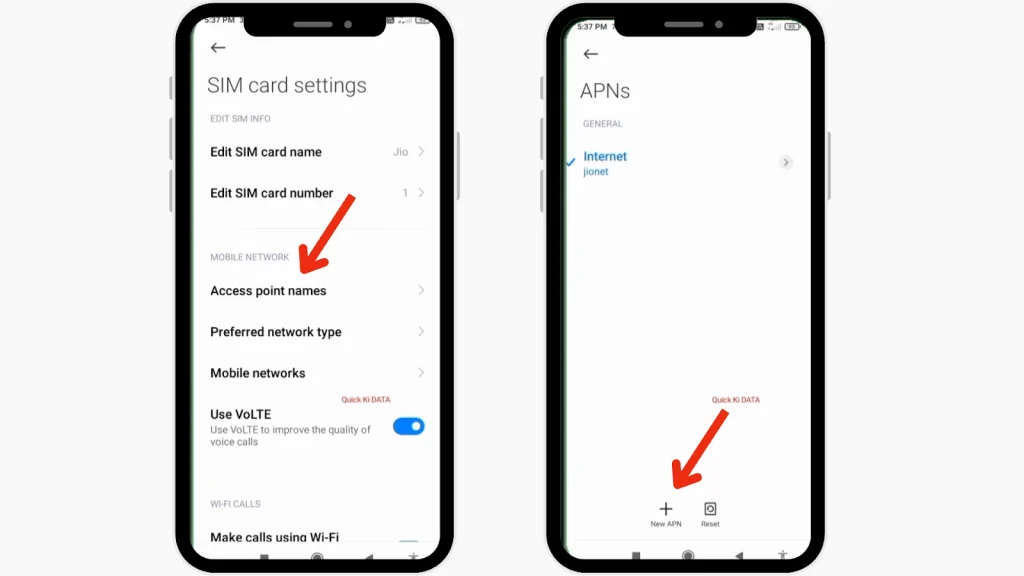
  • Select “Network & Internet” or “Connections”, then choose “Mobile Networks“.
Mobile Networks
  • Tap “Access Point Names (APN)” and select “Add” to create a new APN.
Access Point Names
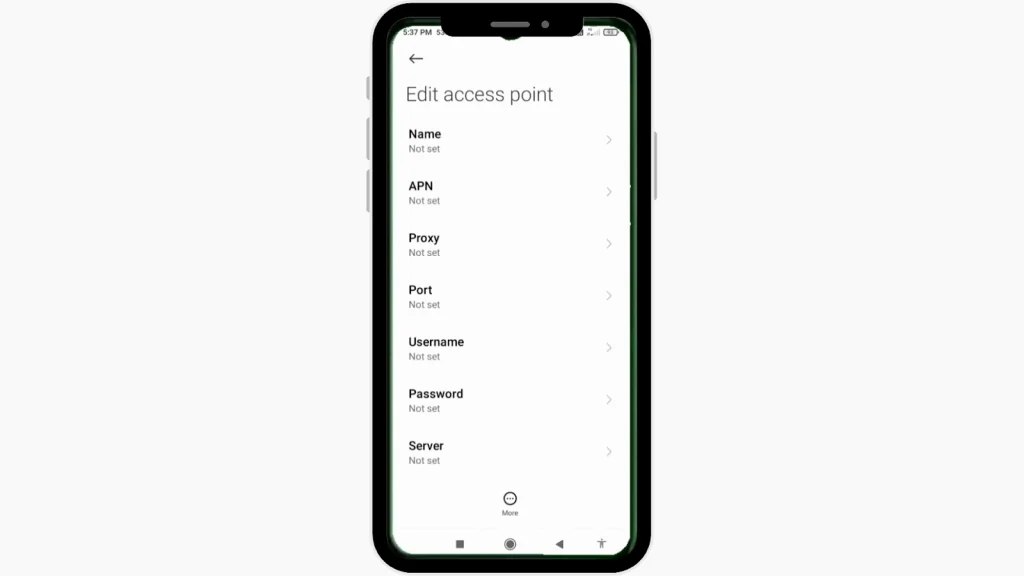
  • Enter the following DITO APN Details:
  • Name: DITO Internet
  • APN: internet.dito.ph
  • MCC: 515 (default for the Philippines)
  • MNC: 66
  • APN Type: default,supl,mms
APN Type
  • Click on “Save”, select the newly created APN, and restart your device if necessary.

DITO APN Settings for iPhone (iOS)

For iPhone users, the process is slightly different but still simple:
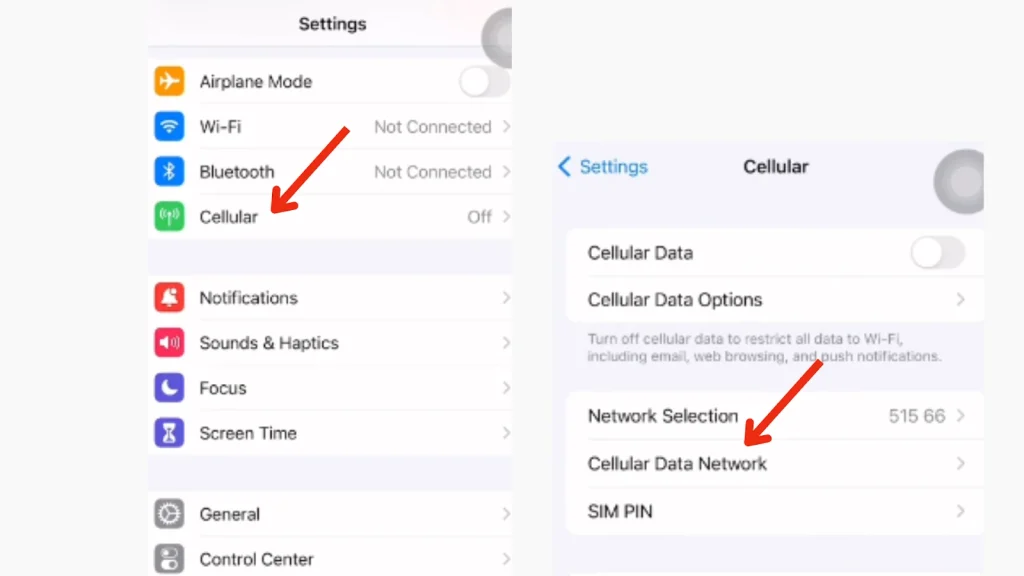
  • Go to “Settings” on your iPhone.
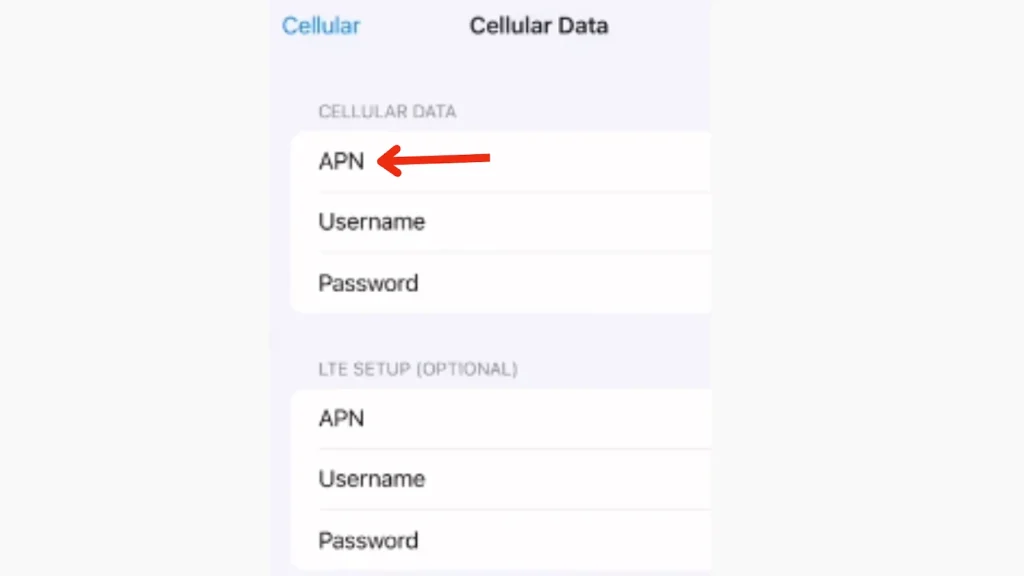
  • Tap “Cellular”, then choose “Cellular Data Network”.
Cellular
  • Under the “Cellular Data/Mobile Data” section, enter:
  • APN: internet.dito.ph
  • Username: (leave blank)
  • Password: (leave blank)
APN
  • After entering the details, exit the settings, and restart your iPhone to apply the new APN.

Default DITO APN Settings (Manual Input)

Here is a quick reference for the official DITO APN settings you can manually input if needed:

  • Name: DITO Internet
  • APN: internet.dito.ph
  • MCC: 515
  • MNC: 66
  • APN Type: default,supl,mms
  • Authentication Type: Not Set or None
  • APN Protocol: IPv4/IPv6

How to Fix DITO APN Issues

If you face issues with your DITO mobile data, here are some troubleshooting steps:

  • Check APN Configuration: Ensure all APN details are correctly entered.
  • Restart Your Device: Sometimes, a simple restart can resolve connectivity issues.
  • Reset APN to Default: Delete custom APNs and reset to the default DITO settings.
  • Check SIM Card Placement: Ensure the DITO SIM is properly inserted.
  • Contact DITO Support: If issues persist, reach out to DITO Telecommunity customer service for further assistance.

Conclusion

Setting up your DITO APN settings correctly is essential for uninterrupted mobile data and MMS services. Whether you’re using an Android or iPhone, following these simple steps ensures a smooth connection. If you face any issues, double-check the APN details and use the troubleshooting tips provided. 

FAQs || YOU MAY WANT TO KNOW

  • Name: DITO
  • APN: internet.dito.ph

Enter these details in your device’s APN settings, save, and restart your device.

The correct APN for DITO is internet.dito.ph and it works for both 4G LTE and 5G networks.

Ensure that the APN settings are correctly configured, restart your device, and check for any network issue.

Yes, you can reset the APN settings by deleting custom APNs and selecting the default option provided by your device.

  • Restart your phone.
  • Check for signal coverage.
  • Reinsert your SIM card.
  • Contact DITO customer support if the issue continues.

No, but if you face connection issues, checking and updating the APN settings can help.

No, updating APN settings only adjusts how your phone connects to the DITO network.

Similar Posts