TM (Touch Mobile) is a popular prepaid network offering affordable mobile services to millions of users. Experiencing “No Signal” on your TM SIM card can cause problems, especially when you rely on your phone for work, communication, and entertainment. Whether you’re unable to make calls, send text messages, or access mobile data, a “No Signal” issue can disrupt your daily routine.
To solve this, try restarting your phone, checking your network settings, or ensuring that your SIM card is properly inserted.
Several factors can cause your TM SIM to lose signal. Below are the most common reasons:
Network Issues
TM’s network may be experiencing maintenance, congestion, or network issues in your area.
Signal problems can occur during bad weather, emergencies, or system upgrades.
Location Problems
If you’re in a remote area, underground, or inside a building with thick walls, your phone may struggle to receive a strong signal.
Network reception is usually weaker in mountainous areas or provinces with limited cell towers.
SIM Card Issues
A damaged, expired, or deactivated SIM card may stop working.
If your SIM is loose or improperly inserted, it may not be detected by your phone.
Phone-Related Problems
Airplane mode may be accidentally turned on, blocking all network connections.
Incorrect network settings can prevent your phone from connecting to TM’s network.
If your phone’s software is outdated, it may not work properly with TM’s latest network updates.
How to Fix TM SIM No Signal Issue
If you’re experiencing a TM SIM no signal problem, try the following solutions one by one:
1. Check for TM Network Outages
Visit TM’s official website or check their Facebook and Twitter pages for announcements about network issues or maintenance in your area.
Ask a friend or family member using TM if they are also experiencing signal problems.
2. Restart Your Phone
Turn off your phone, wait for 30 seconds, and then turn it back on.
This refreshes your phone’s connection to the TM network.
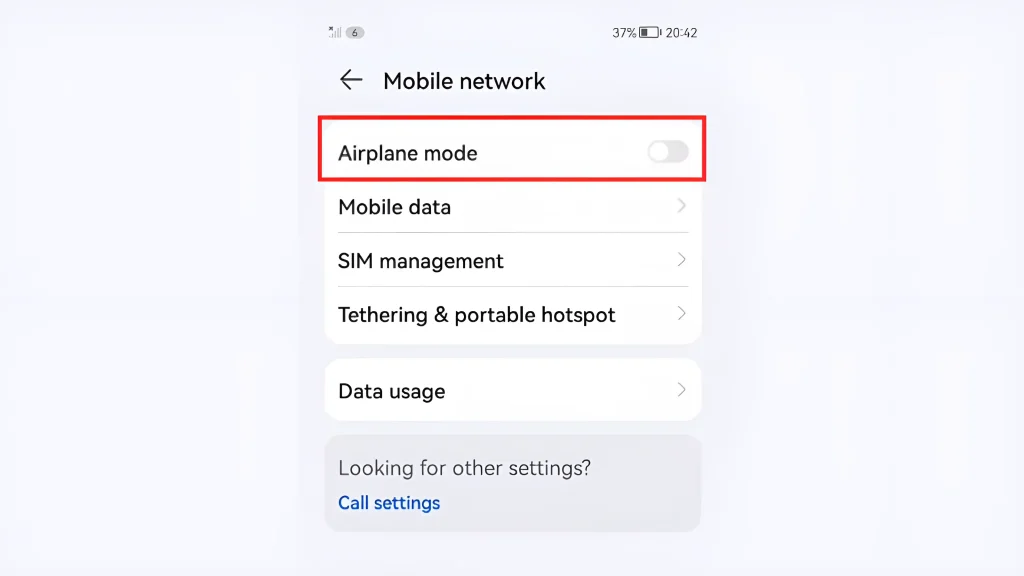
3. Turn On Airplane Mode
Turn on Airplane Mode for 10–15 seconds, then turn it off.
This forces your phone to search for a fresh TM signal.
4. Check SIM Card Placement
Turn off your phone, remove the SIM card, and clean it with a soft cloth.
Reinsert the SIM properly and ensure it is securely placed in the SIM tray.
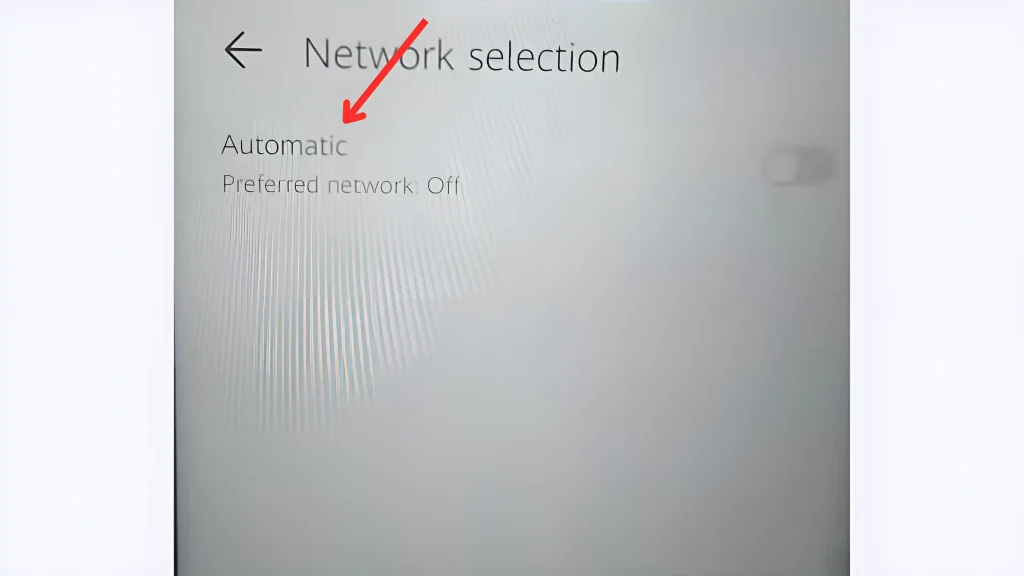
5. Manually Select TM Network
Go to your phone’s Settings > Mobile Networks > Network Operators.
Select TM (Globe Telecom) manually instead of using automatic mode.
6. Try the SIM in Another Phone
Insert your TM SIM into another phone.
If the SIM works in another device, the issue is with your phone.
If the SIM still shows no signal, your SIM may be damaged or deactivated.
7. Update Phone Settings
Make sure your phone’s software is updated to the latest version.
Note:If you have tried all the solutions above and your TM SIM still has no signal, you can contact TM customer support by calling 808 from your TM mobile or (02) 7730-1500 from a landline for free.
Steps to Resolve TM SIM No Signal Error on Android
If your TM SIM is not getting a signal on your Android phone, follow these simple steps:
Press and hold the power button and select Restart.
Wait for your phone to reboot and check if the signal returns.
Swipe down to open the Quick Settings panel.
Tap Airplane Mode to enable it.
Wait for 10–15 seconds, then turn it off.
This forces your phone to search for a fresh TM signal.
Go to Settings > Connections > Mobile Networks > Network Operators.
Turn off Automatic selection and choose TM (Globe Telecom) manually.
Steps to Resolve TM SIM No Signal on iPhone
If your iPhone is not detecting a TM signal, follow these steps:
Press and hold the power button (or Side button + Volume button on newer models) and slide to power off.
Turn it back on and check for a signal.
Open Control Center and tap Airplane Mode to turn it on.
Wait 10–15 seconds, then turn it off.
This refreshes the network connection.
Go to Settings > Cellular > Network Selection.
Turn off Automatic and select TM (Globe Telecom) manually.
Turn off your iPhone and remove the SIM card.
Clean the SIM gently and reinsert it properly.
Turn your iPhone back on and check for signal bars.
Go to Settings > General > Transfer or Reset iPhone > Reset > Reset Network Settings.
This will reset Wi-Fi, cellular, and APN settings (but will not delete data).
Conclusion
A TM SIM no signal issue can be caused by network outages, location problems, SIM issues, or phone settings. But, there are simple solutions you can try, such as restarting your phone, reinserting the SIM, manually selecting the network, and updating your settings.
If none of the solutions work, you can contact TM customer support for further assistance or visit a TM store for a SIM replacement.
FAQs || YOU MAY WANT TO KNOW
Your TM SIM may have no signal due to weak network coverage, SIM card issues, phone settings, or an ongoing system maintenance in your area.
Try these steps:
Restart your phone.
Remove and reinsert your SIM card.
Switch to Airplane Mode for a few seconds, then turn it off.
Manually select TM as your network in phone settings.
Check for network outages in your area.
You can visit the official TM or Globe website, follow their social media pages, or contact TM customer service to check for network updates.
Yes, if your SIM card is physically damaged or worn out, it may not work properly. You may need to replace it at a TM or Globe store.
Your TM SIM may not work due to roaming not being activated, network incompatibility, or lack of coverage in your location.
Traveling abroad and want to stay connected with your TNT number? TNT roaming allows you to use your SIM card outside the Philippines, so you can make calls, send messages, and access the internet. Whether you’re on vacation or a business trip, TNT roaming ensures you can keep in touch with family and friends. For…
Ever run out of load right when you need to make an important call? Staying connected with family and friends is now easier and cheaper with TNT unli call promos. TNT (Talk ‘N Text) lets you enjoy unli calls to all networks, including Globe, Smart, Sun, and DITO, without worrying about per-minute charges. In this…
Ever dreamed of staying connected while traveling around the world? Globe prepaid roaming makes that possible! Whether you’re having trouble getting a signal or can’t connect to the internet. This blog will guide you through the most common problems users face with Globe prepaid roaming and how to fix them in simple steps. How to…
Keeping track of your TM prepaid balance is important to stay connected for calls, texts, and mobile data. Whether you’re planning to send messages, make a call, or use the internet, knowing your remaining load via TM balance inquiry helps you avoid running out at the wrong time. TM SIM offers several convenient ways to…
⚠️ Unregistered Smart SIMs will be permanently deactivated — register now to keep your number FREE · 2026 Smart Communications · SIM Registration Guide · Philippines Register Your Smart SIM CardFree, Online, Step by Step All Smart prepaid SIM cards must be registered under the SIM Card Registration Act. Unregistered numbers are permanently deactivated with…
TM (Touch Mobile) is known for its budget-friendly prepaid promos, serving Filipinos who need affordable call, text, and data services. One of its latest offers, TM EasyPLAN, provides a convenient way for users to enjoy cost-effective mobile plans with fixed allocations for data, calls, and texts. You can easily subscribe to this plan by dialing…