TM APN Settings For Fast Internet 2026
APN is used as a connection between your mobile phone and the internet. For TM users, using the correct APN settings is essential to ensure seamless internet access and MMS (Multimedia Messaging Service) connectivity. If you’re experiencing issues with mobile data on your TM network, incorrect APN settings could be the reason.
To resolve this, go to your device Setting < Connection < Network & Internet < APN.
Scroll down for a detailed guide on TM APN settings for both Android and iOS devices.
What is APN?
APN stands for “Access Point Name”. It’s a set of settings used by your phone to connect to the network and access the internet. APN can also define the service a PDN (Pocket Data Network) provides such as MMS.
Why Do You Need the Right APN Settings for TM?
Proper APN settings allow you to:
Best TM APN Settings
To use the internet, make sure your device is configured with the correct TM APN settings. Below are the recommended settings for TM’s mobile internet services:
National (Default) Settings
For specific-region optimization, consider these options;
Visays
(Other settings remain the same as default settings )
Mindanao
(Other settings remain the same)
By using these APN settings users can get faster internet services. If you still face problems you can also contact TM Customer Support for help.
TM APN / Internet Settings for Gaming
For online gaming, a stable internet connection is necessary. Here’s how you can set TM APN setting for smooth gaming experience:
| APN Name | APN | Authentication | Notes |
| TM Internet (Default) | Internet | PAP | Good Starting Point |
| TM Visayas Internet | Visayas | PAP | May improve performance in visayas |
| TM Mindanao Internet | Mindanao | PAP | May improve performance in mindanao |
| Open APN (Use Cautiously) | fast globe.com.ph OR internet.smart | PAP / CHAP | Can improve gaming performance but may be unstable |
How to Set TM APN on Android
Follow these steps to manually configure your TM APN settings on an Android phone:
- Go to Settings on your Android device.
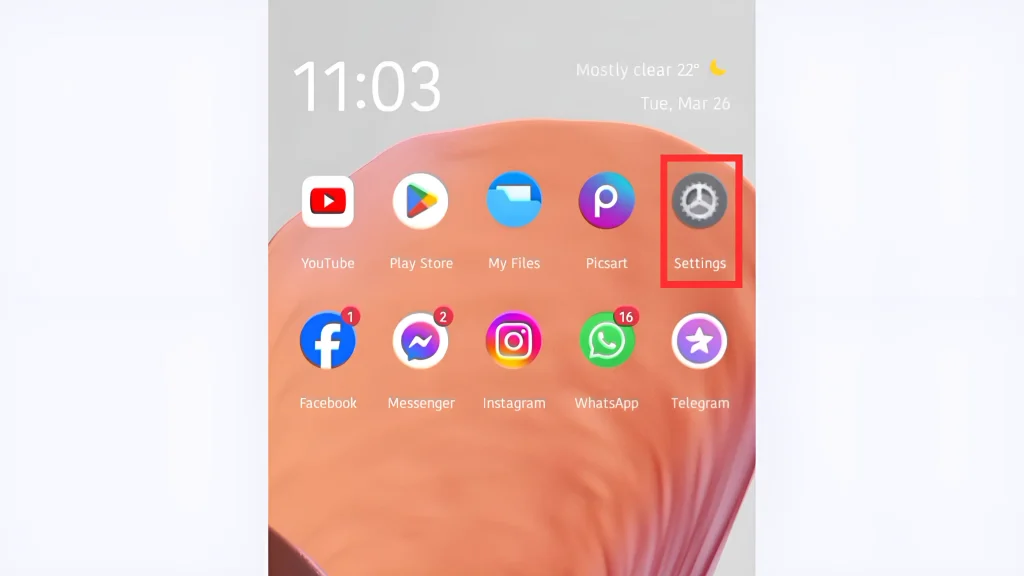
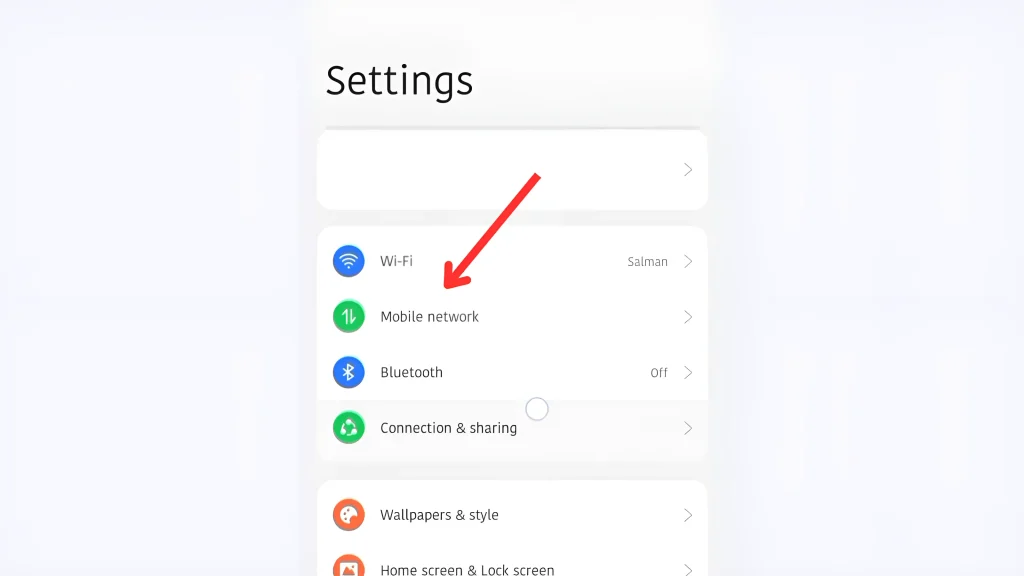
- Tap on Connections (or Network & Internet depending on the device).
- Select Mobile Network.
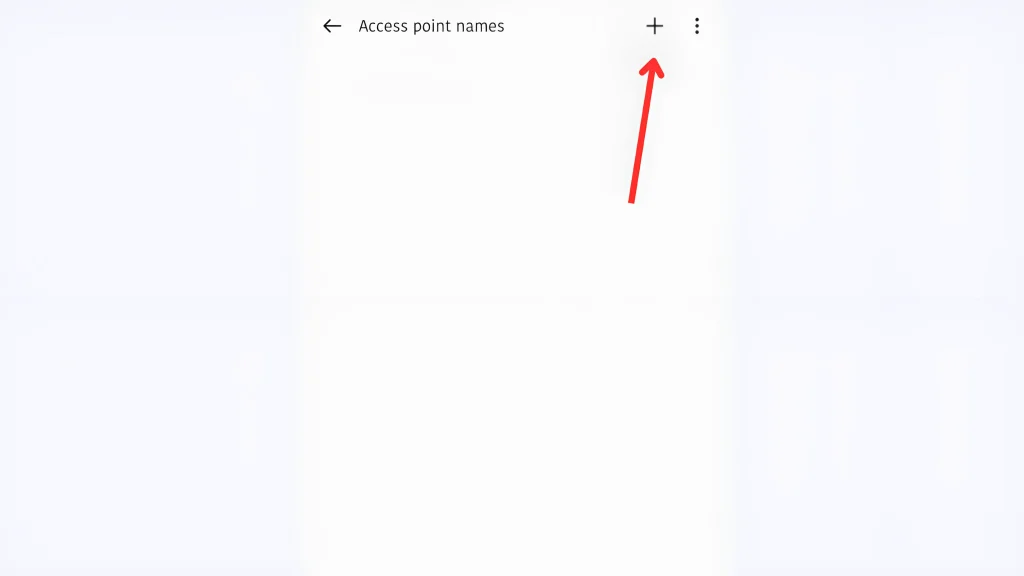
- Tap on Access Point Names (APN).
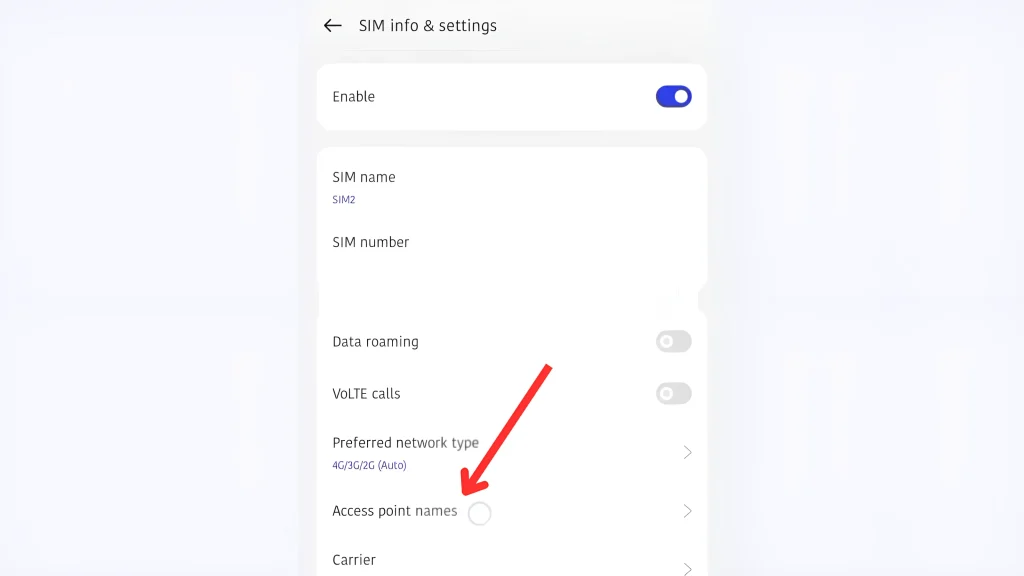
- Add a new APN by tapping the + icon or Add at the top-right corner.

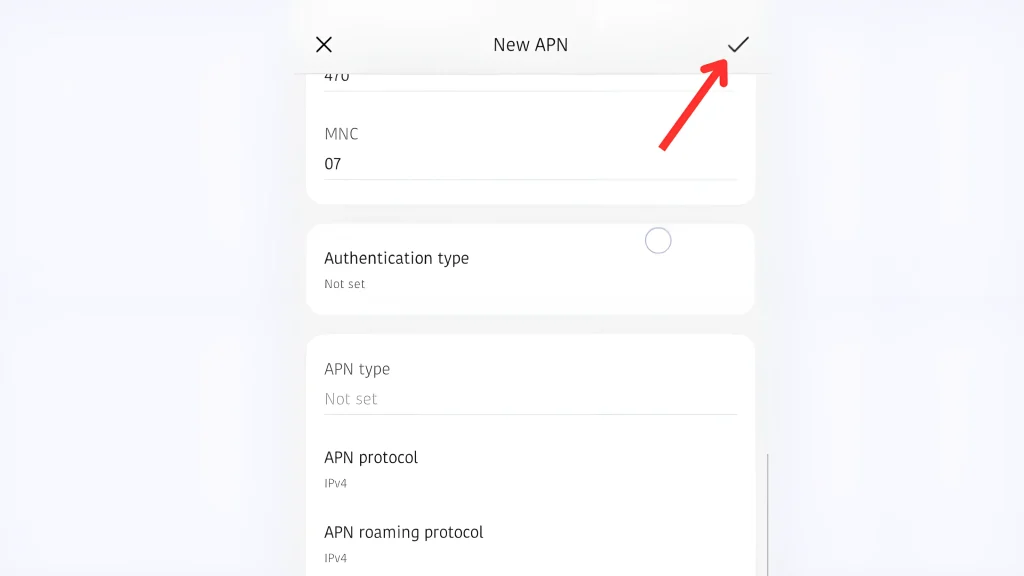
- Enter the following TM APN settings (details provided above).

- Save the settings.
- Restart your phone for the changes to take effect.

How to Set TM APN on iPhone
Here’s how to configure the TM APN settings on your iPhone:
- Go to Settings on your iPhone.
- Select Cellular (or Mobile Data).

- Tap on Cellular Data Options.
- Select Cellular Network.
- Enter the APN settings provided above.
- Once entered, restart your iPhone to apply the changes.
How to Restore the Default APN Settings
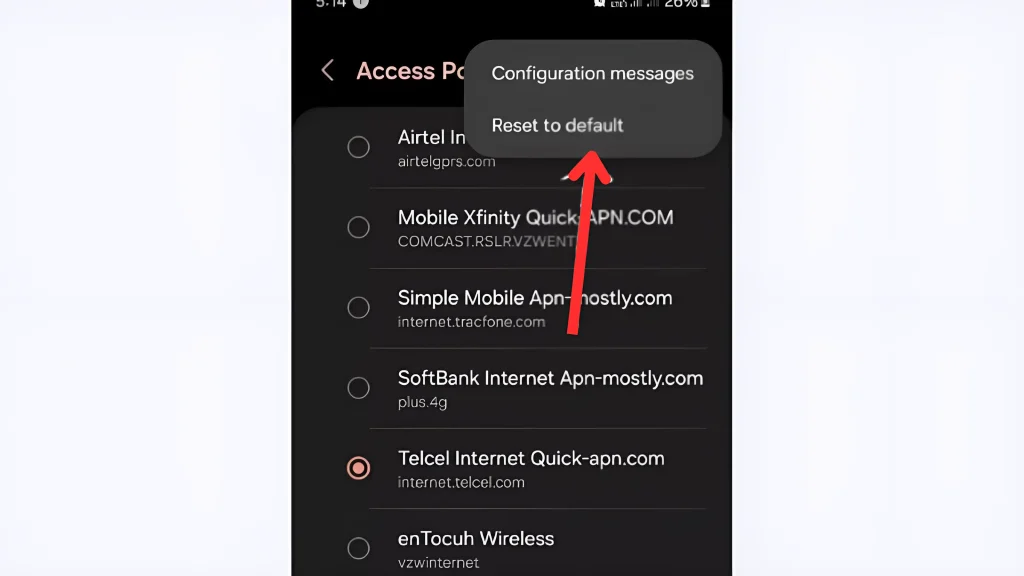
How to Delete TM APN Setting
Follow these steps to delete your TM APN setting:
- Select the APN that you want to delete and click on trash icon “
 ”
”
 ”
” Tips for Optimizing Your TM Internet Experience
| Ensure Correct APN Settings | Make sure that your TM APN settings are set up correctly. Incorrect APN settings can lead to slow speeds or connectivity issues. |
| Clear Cache Regularly | Over time, your phone’s browser or apps may collect cached data, which can slow down your internet speed. Clear the cache periodically to improve your browsing speed and app performance. |
| Enable Data Saver Mode | Enable Data Saver Mode on your device if you’re using mobile data. This reduces data usage by limiting background data, and saving your money. |
| Check for Network Coverage | Make sure you’re in an area with good TM network coverage. Poor signal strength can lead to slower speeds and connectivity drops. |
| Disable Unnecessary Features | Turn off features like Bluetooth, location services, or VPNs when not in use. These can sometimes interfere with your connection or use up your device’s resources. |
Conclusion
Having the correct TM APN settings on your phone is crucial for proper mobile internet services. If you’re facing issues like slow internet or problems with APN settings, double-check your settings and follow the steps provided in this guide to resolve the issue. Remember, restarting your phone after updating the APN settings is important to ensure everything works smoothly.
If problems persist, reach out to TM customer service for further assistance.